Here are a my Top 7 Strategies for teaching English Language Learners (ELLs):
1.) Slow down your speech. Some students are taking what you say in English, translating it into their native language, then translating their response from their native language into English. Therefore, the students need more processing time.
2.) Wait Time - Because all of that translating is taking place in their minds, ELLs need extra time to process what is being said/asked. Once you ask a question, give the students about 5 seconds to respond before moving on or rephrasing your question.
3.) Use graphic organizers to help organizing thinking.
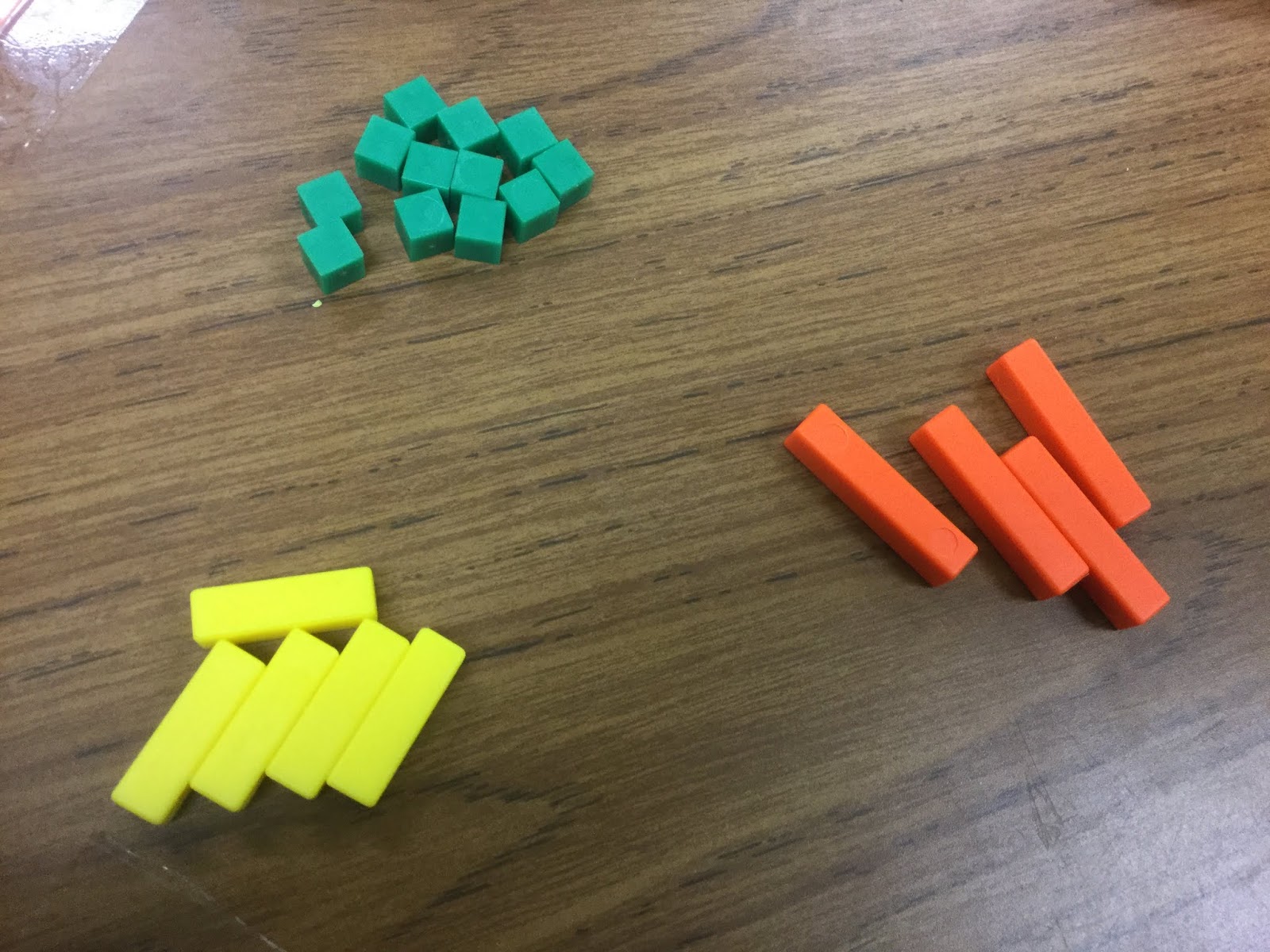
4.) Use manipulatives in Math to help with the conceptual understanding.
5.) Use sentence frames and/or sentence starters to help the students to formulate their responses or conversations among their group mates.
6.) Provide an opportunity for the students to read, write, listen, and speak several times a day every day.
7.) Cooperative groups is imperative. It helps the students to practice their listening and speaking and it also takes some of the pressure off of them when it comes to responding to the teacher. Students should work in groups several times a week.
Tuesday, April 30, 2019

Wednesday, March 13, 2019
Google Certified Educator
For those educators that use Google Apps (GAFE) consistently, you may want to think about becoming a Google Certified Educator. The training is free, but the assessments are a fee ranging from $10-$40. Once you pass the assessment, you will be awarded with a badge that you can put on your blog, website, email, etc. Some school districts offer Google Certified Training for a fee, but here is the link to begin training today. You only need to sign in with a Google account.
Google Training Page

Google Training Page

Tuesday, March 12, 2019
Versatiles
Versatiles are a fun, self-checking learning center. Students can reinforce previously taught skills. They have grades Kindergarten up to Algebra 1 and Geometry.


To see how they work, take a look at this video...
Monday, March 4, 2019
Combining Like Terms
We used Algeblocks to demonstrate combining like terms via ETA Hand to Mind. First, we recreated the picture. Then, we categorized the pieces: x, y, and the constant. From there, we were able to simplify the expression.

Here are some examples of our small group.


Tuesday, January 29, 2019
Bookmarks
I know many of us use some sort of Bookmarking feature to help you to access your frequently used website. I use Symbaloo. It's strictly for bookmarking. You can access all of your websites as long as you are connected to the internet. So, if you save your bookmarks on your computer, but don't have your computer with you, you may be out of luck. With Symbaloo, just log into your account and there they are...all of your bookmarks.
It's easy! Create an account. I use the free version.
Just right click on a blank space to create a tile.
Type in the website address. Voila!
Your favorite website is now saved on a "Webmix" (pictured below).
You can also share a Webmix with others. For example, if you want your students to access certain websites for your class.
Work Smarter, Not Harder
It's easy! Create an account. I use the free version.
Just right click on a blank space to create a tile.
Type in the website address. Voila!
Your favorite website is now saved on a "Webmix" (pictured below).
You can also share a Webmix with others. For example, if you want your students to access certain websites for your class.
Work Smarter, Not Harder
 |
| Screenshot of a Webmix |
Tuesday, January 22, 2019
How to Screenshot
How to Screenshot on a Mac.
1. System Preferences (Figure 1)
2. Keyboard (Figure 1)
3. Shortcuts (Figure 2)
4. Screen Shots (Figure 2)
There you will see the 4 ways you can screenshot. You can take a partial or entire screenshot and save as a file or copy to clipboard.
 |
| Figure 1 |
 |
| Figure 2 |
****************************************************************
How to Screenshot on a PC.
***************************************************************
How to Screenshot on a ChromebookEntire Screen
Ctrl + Window Switch Key
Partial Screen
Ctrl + Shift + Window Shift Key
Wednesday, January 16, 2019
Math Key Words Artifact
I create an artifact for Math Key Words to help guide the students when solving Expressions and/or Equations. The artifact is posted in the room for the entire year and the students also make their own. To create this artifact, we do this 4 Corners Activity.

- Each student has a card with a word that means one of the operations on it (i.e. sum, per, altogether, etc.)
- The students have a few minutes to discuss with their groups what operation they feel their word means.
- The students then move to 1 of the 4 prelabeled corners (Addition, Subtraction, Multiplication, Division).
- Each student uses the sentence frame: "I have (word) and it means (addition, subtraction, multiplication, or division) because (explanation). If the students are incorrect, the other students in the class get to correct them using Accountable Talk/Math Sentence Stems. The incorrect student then moves to the correct corner and says their statement again, correctly.
- Then together we create the poster.
- The students must write small enough that we can add to our poster at any time.
- The students are also writing the information from the poster into their Math Journals.
There is an extra section for words that means Equal too, but we add that later after the 4 Corners Activity.
Here is an example of one we created...

Subscribe to:
Posts (Atom)